
Polygraf AI Meeting Guard is a Zoom meeting security and compliance recording app that helps HR teams, security teams, and compliance managers verify and validate meeting participants. It records every session automatically and analyzes each participant for AI-assisted responses, synthetic voices, and sensitive data exposure — in real time, during the call.
Meeting Guard is currently available to allowlisted customers only. To request access, contact Polygraf at polygraf.ai/contact. Once access is granted, you will be able to use Meeting Guard.
1
Go to meeting-guard.polygraf.ai, sign up, and complete account creation.
If you find Meeting Guard on the Zoom Marketplace first and click Add, you will still need to complete this step. The Zoom Marketplace listing will redirect you to sign up before the integration can be activated.
2
Linked Accounts3
User Settings4
Admin Settings in the sidebarBot Settings tabRecording Announcement section, configure your preferred message or voice notificationIf you find Meeting Guard on the Zoom Marketplace first and click Add, you will still need to complete this step. The Zoom Marketplace listing will redirect you to sign up before the integration can be activated.
Create a BotJoin atAll detection processing happens within Polygraf’s infrastructure and is not dependent on Zoom’s systems.
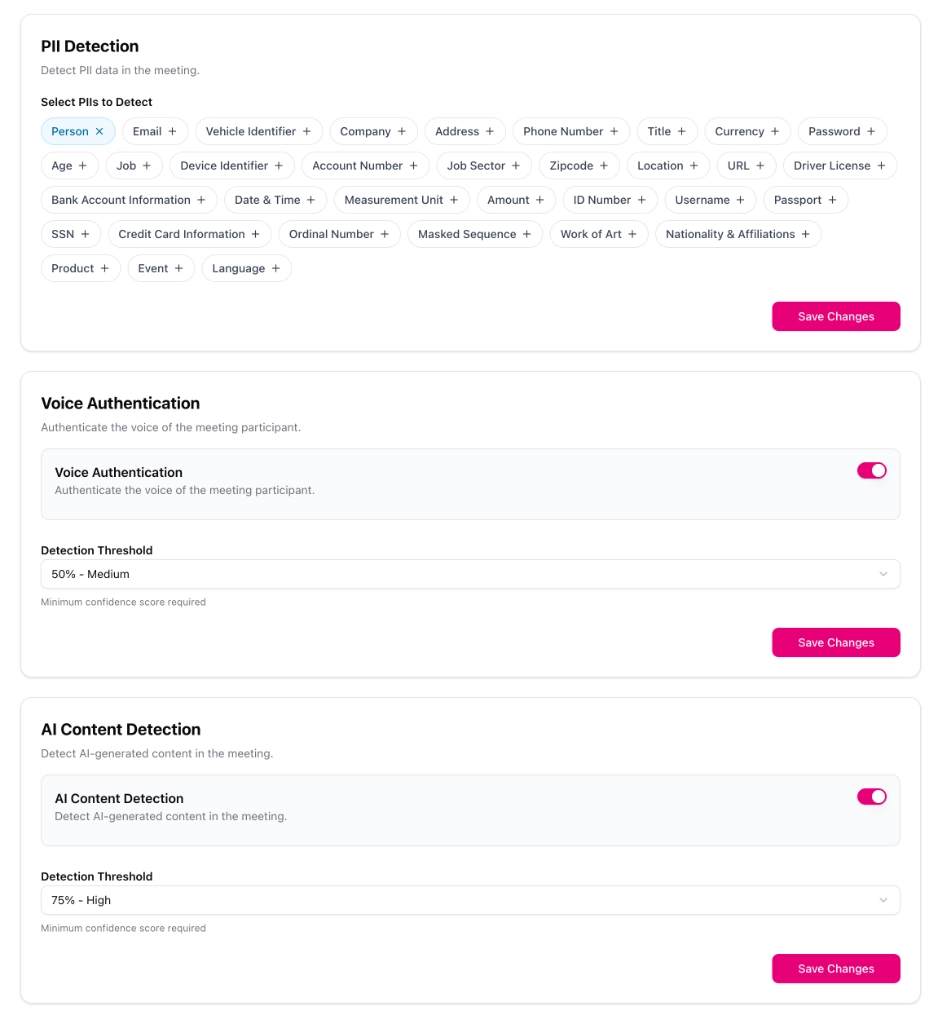
Detection settings are configured per-account in Admin Settings. The screenshot below shows the available controls:
🔴
Meetings page and also under Live Monitors & Alerts in the Polygraf dashboard 📊
Meetings → select the meeting for the full report. An email summary is sent automatically. Use Zoom’s native Remove participant option on the bot’s entry in the participants list. The host can do this at any time.
Linked Accounts in the Polygraf sidebarThe bot will no longer join any Zoom meetings after disconnection.
Account deletion is permanent. All stored data — including meeting recordings, transcripts, and analysis reports — is deleted immediately and cannot be recovered. Contact Polygraf AI to delete your account.
Check the bot status on the Meetings page. An Error status means the bot couldn’t join — the most common cause is an invalid meeting link or missing host permissions. Verify that the Zoom meeting link you provided (or that was pulled from your calendar) is correct and that the meeting allows participants to join. If you’re using Option A (calendar), confirm your Google Calendar or Outlook is connected under Linked Accounts and that the Zoom link appears in the meeting invite.
Results appear in the Meetings page under Live Monitors & Alerts during the call, and in the full report after the meeting ends. If neither appears, check that Audio recording and Video recording permissions were granted during the Zoom OAuth authorization step. If permissions are missing, disconnect and reconnect your Zoom account under Linked Accounts → Meeting Platforms and re-authorize.
The bot’s display name is set in User Settings → Meeting Bot Name. Changes apply to all future meetings — they won’t affect a bot that has already joined. Update the name, save, and verify on the next meeting.
Preparation means the bot is queuing to join — this typically resolves within 30–60 seconds before the meeting start time. Post Processing means analysis is running after the meeting ends; this is normal and may take a few minutes depending on meeting length. If either status persists beyond 10 minutes, contact support at polygraf.ai/contact.
Confirm the email address on your Polygraf account is correct. Check your spam or junk folder. If the issue persists, contact support.
Review your Detection Threshold settings under Admin Settings → Bot Settings. A threshold set too high (e.g., 90%+) will reduce alerts. For most environments, Medium (50%) is recommended for Voice Authentication and High (75%) for AI Content Detection. PII detection categories must be individually selected — confirm the relevant types are toggled on.
Meeting Guard is currently available to allowlisted customers only. Request access at polygraf.ai/contact.
All data is stored securely within Polygraf’s infrastructure.
Upon account deletion, all data is permanently and immediately removed.
Participant notification and consent management is the responsibility of the account administrator.
✓
Polygraf does not use any third-party vendors for data processing. No meeting data, recordings, transcripts, or analysis results are sent outside of Polygraf’s infrastructure.
✓
All AI inference, voice analysis, and PII detection run entirely within Polygraf’s own systems.
✓
On-premises deployment is available for enterprise customers who require full data residency and air-gapped environments. Contact Polygraf at polygraf.ai/contact for details.
For questions, technical issues, access requests, or enterprise inquiries:
Participant notification and consent management is the responsibility of the account administrator. Polygraf provides a configurable Recording Announcement (set under Admin Settings → Bot Settings → Recording Announcement) that can deliver a message or voice notification when the bot joins. Your organization is responsible for ensuring compliance with applicable recording consent laws in your jurisdiction.
Meeting Guard collects video recordings, audio recordings, and meeting transcripts. All data is stored securely within Polygraf’s infrastructure. No meeting data, recordings, transcripts, or analysis results are sent to third-party vendors.
All AI inference, voice analysis, and PII detection run entirely within Polygraf’s own systems. Polygraf does not use third-party vendors for data processing. For enterprise customers requiring full data residency or air-gapped deployments, on-premises deployment is available — contact polygraf.ai/contact for details.
Account deletion is permanent. All stored data — including meeting recordings, transcripts, and analysis reports — is deleted immediately and cannot be recovered.
Polygraf AI is certified or compliant with SOC 2 Type II, ISO 27001, GDPR, HIPAA, and CCPA.
Yes. Option B (Manual Bot Deployment) lets you send the bot to any Zoom meeting by pasting the meeting link directly into the Polygraf dashboard, without requiring a calendar connection.
The bot couldn’t join the meeting. This is usually caused by an invalid or expired meeting link, or a Zoom meeting that requires host approval for participants to join. Verify the link and meeting settings and try again.



© 2026 Polygraf AI. All rights reserved.
 Our Solutions
  Regulations
 Your download will start now.
Please provide information below and we will send you a link to download the white paper.
 Data Privacy
  Data Provenance
  Content Generation